This tutorial based on the server @tau-neutrino.ps.uci.edu
Welcome to the world of neutrinos! ⚛️ Neutrinos are tiny, fundamental particles that are all around us. They are produced in the sun, in distant exploding stars (supernovae), and right here on Earth in particle accelerators. However, they are famously difficult to study. Because they have no electric charge and very little mass, they rarely interact with other matter, earning them the nickname "ghost particles." Millions of them are passing through you right now without leaving a trace!
Despite being so elusive, neutrinos are crucial to our understanding of the universe. Studying them helps us unlock the secrets of stars, understand why there is more matter than antimatter, and search for new physics beyond our current theories.
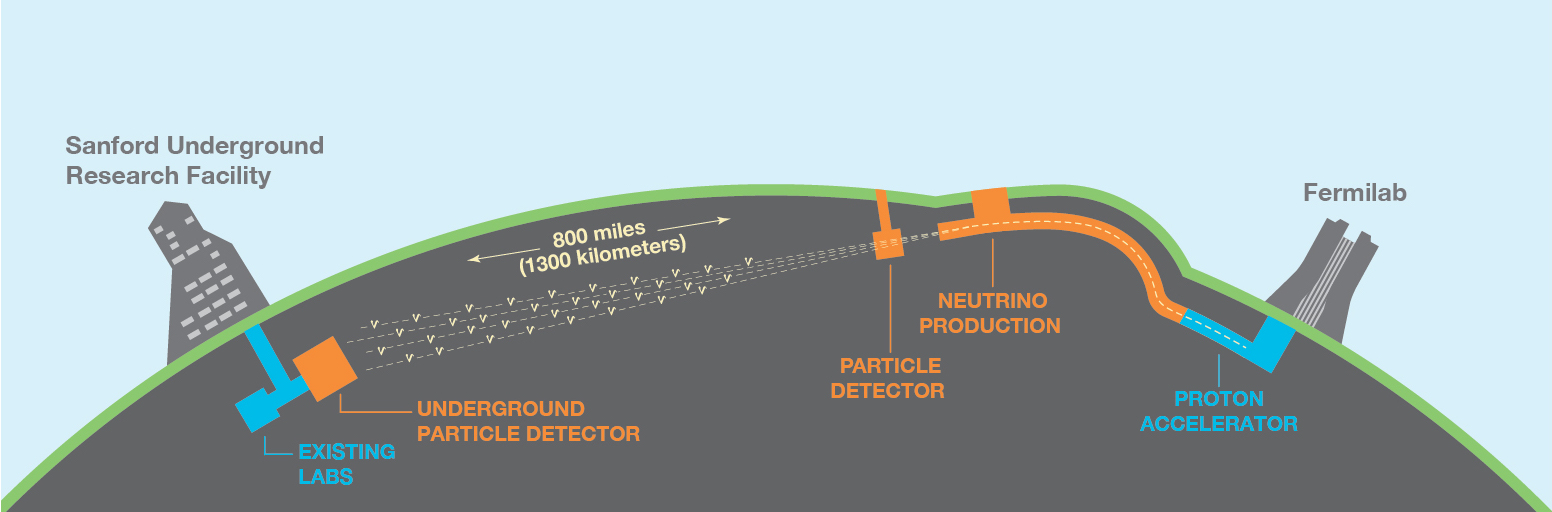
-
Determining the ordering of neutrino masses (mass hierarchy).
-
Measuring the violation of charge-parity (CP) symmetry in the lepton sector.
-
Understanding supernova neutrino bursts and astrophysical phenomena.
-
Searching for physics beyond the Standard Model.
One of the most important tasks in DUNE is event classification—identifying the type of neutrino interaction from the data recorded by the liquid argon time projection chambers (LArTPCs). Neutrino interactions can be classified into several categories:
(Below, for each interaction class two LArTPC projection images are shown: left = x–z view, right = y–z view.)
NC (neutral-current interactions, any flavor)


νeCC (electron neutrino charged-current)


νμCC (muon neutrino charged-current)


ντCC (tau neutrino charged-current)
Excluded from the 3‑class training because ντ CC events are experimentally scarce: producing a tau lepton requires a higher neutrino energy threshold (~3.5 GeV), the flux and effective cross section in the usable energy range are lower, and the short tau lifetime with many decay modes makes reconstruction and labeling more ambiguous. No example image is shown for this class.
Correctly distinguishing among these interaction types is crucial for physics analyses, as it directly impacts oscillation measurements and background rejection. Traditionally, physicists relied on hand-engineered features and rule-based algorithms to perform this classification. However, with the large and complex datasets produced by DUNE, machine learning (ML) techniques, particularly deep learning with convolutional neural networks (CNNs), have become powerful tools for improving classification accuracy and efficiency.
This tutorial demonstrates how to apply machine learning (using TensorFlow) to classify neutrino events into different interaction categories. It introduces preprocessing steps, training, evaluation, and visualization methods, providing a practical starting point for students and researchers interested in applying ML to neutrino physics.
1, To connect the server, you must be on the UCI network. You can access the network with a VPN if you aren't on campus, info available here: https://www.oit.uci.edu/services/security/vpn/.
2, Contact maintainer of the server to get an account on the server such as [email protected], and an initial password.
3, Connect to the server with your initial password: $ssh [email protected].
4, Change your initial password and follow prompts: $passwd.
*Note: Be sure your password is safe and correct. Your account will be locked when you input wrong password twice.
You are not entitled to run at root or sudo.
1, You need to be able to access github from the server. You can generate a personal token in GitHub Settings -> Developer settings -> Personal access tokens -> Tokens (classic) -> Generate new token -> Generate new token (classic). Remember to copy and save the generated token because it will only be displayed once.
2, Your directory path on the server is /home/you/, init your remote repo
$ git clone url_to_repo
where url_to_repo is https://github.com/zhongyiwu/neutrino-cnn.git, or that replacing "zhongyiwu" with your own username if you forked your own version (don't worry about that point if you're just starting though). You will be asked for your GitHub username and password. Your username should be your normal username, but the password should be the personal token you just generated. Now, this repo should appear as the directory "neutrino-cnn".
3, You can follow the same procedure to clone this repo to your local computer.
You will need to install several modules manually. First, install torch module:
$ pip install torch==2.7.0 torchvision torchaudio
Install the Python API for OpenCV:
$ pip install opencv-python
Make sure your numpy version is compatible with torch (<2.0):
$ pip show numpy
If you have a numpy version >2.0, you will need to downgrade your numpy module.
Install seaborn:
$ pip install seaborn
Install pyarrow, fsspec, etc. alongside ray:
$ pip install "ray[train]"
$ cd /home/you/neutrino-cnn
$ mkdir checkpoint
-neutrino-cnn
    \
    -README.md
    -model_train.py
    -utils.py
    -checkpoint
First, open model_train.py with nano: $ nano model_train.py (or other editors you are familiar with), and change the saving path of everything to your own path /home/you/neutrino-cnn/ or /home/you/neutrino-cnn/checkpoint,etc.
In nano, you can use Ctrl+\ (backslash) to open the search and replace function. Search for "houyh" and replace it with your username to update all path references.
- Y = Replace current match
- N = Skip current match
- A = Replace all matches
- Ctrl+C = Cancel operation
You can also change the data directories in "utils.classifier_dataloader_cropped" if you have your own images for training and evaluation.
Different ways to run the model
Choose the one you prefer. Here use nohup as a demonstration
(note that the --model parameter is required)
$ nohup python model_train.py unified_train --model resnet18 >resnet18.out 2>&1 &

models available:'mobilenet', 'resnet18', 'resnet34', 'resnet50'
Check running display information in nohup.out
nohup is a great way to keep your logs tidy. It ensures that the output from each training process gets its own file, which is perfect for when you're running different jobs on different GPUs at the same time and want to keep things separate.
Learn how to manage GPU (GPU Management)
Loss curve and all the plottings will be available and automatically up to date in the folder with the name of the model that you choose. So, please remember to add --model parameter every time you run the command otherwise the plotting and the weights will fail to preserve.
Now that you have the models, you can use them to make predictions.
Run the command
(note that the --model parameter is required)
$ nohup python model_train.py prediction --model resnet18 >pred_resnet18.out 2>&1 &
The prediction file is in HDF5 format automatically saved in the prediction directory with the name including the model you use.
To obtain the confusion matrix, PID distribution and Pur/Eff matrix, run the command:
(note that the --model parameter is required)
python model_train.py plots --model resnet18
The plots will be saved in directory named after your model.
Learn more about the the classification evaluation metrics
You can open the output plots using your own method or using jupyter notebook:
Locally, run $ ssh -L 8888:localhost:8889 [email protected].
Remotely, run $ jupyter notebook --no-browser --port=8889.
Copy the url to your browser. In your browser, change http://localhost:8889/ to http://localhost:8888/.