UseCase
- Remove unused function.
- Quick previewing
- Direct edit multiple line
- Navigate to point of interest
- As minimap-like
- As TODO list
- As TOC( table-of-content )
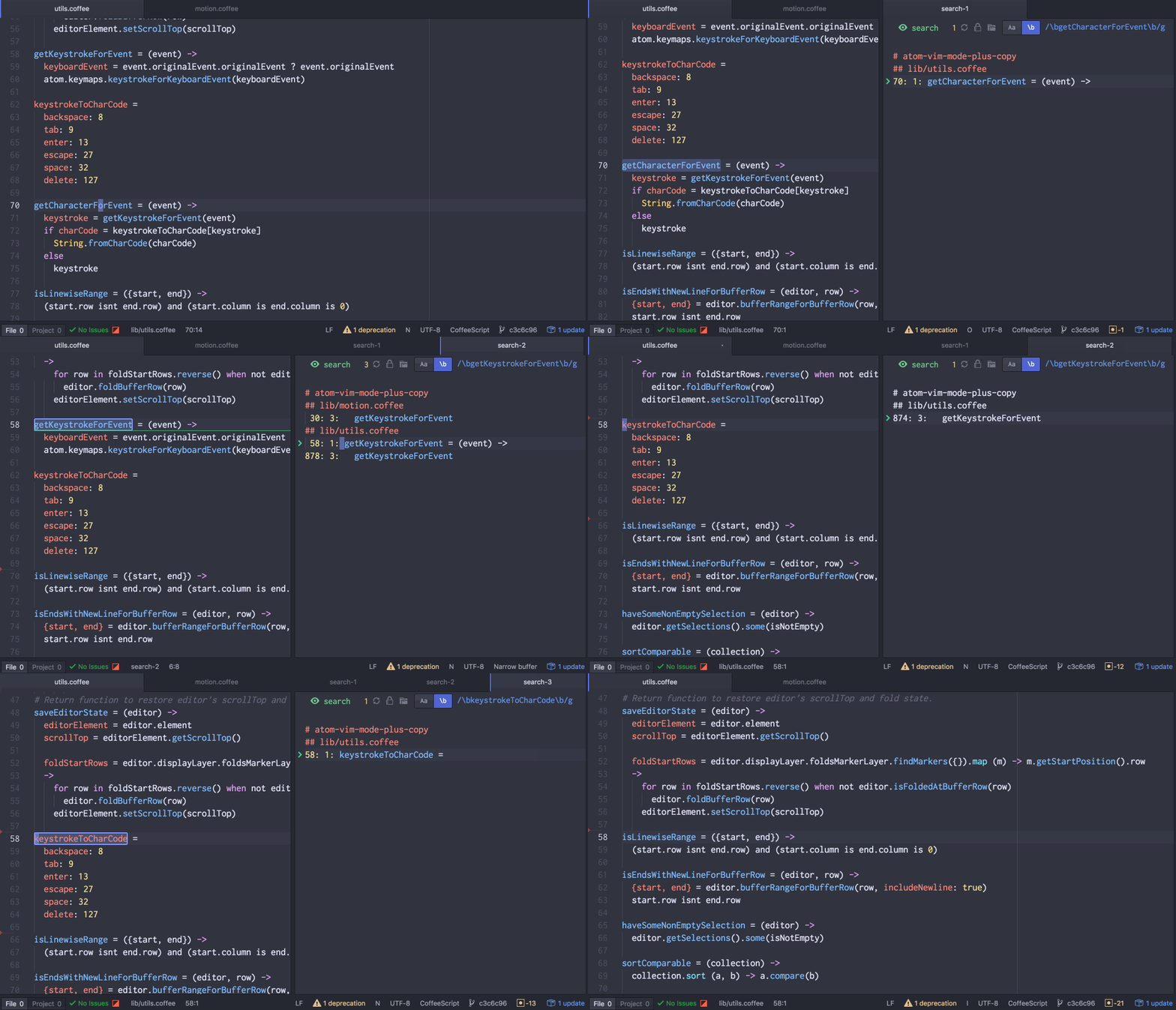
By search whole projects, you can remove unused functions with confidence.
You don't have to use your brain, just repeat following steps.
- search
- remove unused function and save
- hit
tab(narrow:next-item). - repeat step 1-3 until items on
narrow-editorget emptied.
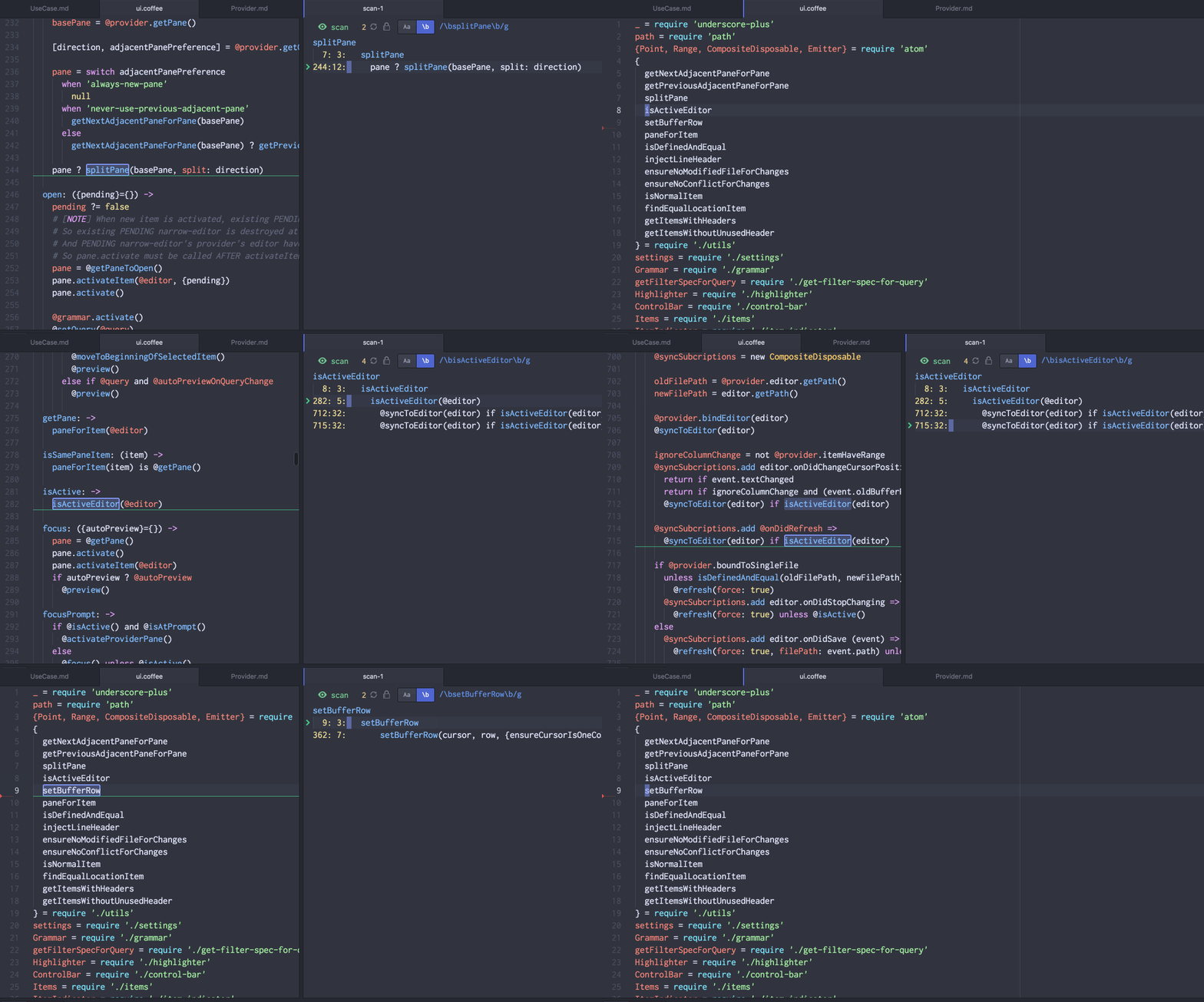
- Start
narrow:scan-by-current-word. - Check how that term is used in current file.
- Closing
narrow-editorbyctrl-grecover original cursor position/screen-top/fold.
Provider: scan, search, atom-scan

- Start
narrow:scanand input query. - Move to item area, and edit-it.
- Invoke
narrow-ui:update-real-filefrom command palette or from keymap. - Changes you made is applied to real file.
- Open
narrow:fold,narrow:search - Confirm first matching item, now focus is on original-pane.
-
next-item,previous-itemguide cursor to next/previous point of interest. - As you move to next/previous-item, or any cursor movement/pane-item change reflect current-selected-item indicator on narrow-editor, this will give user "where am I info".
- Keep track of current position within items is really important.
-
next-itemthen move cursor to different position by mouse-clicking/or via normal-atom-command thennext-itemSHOULD move tonext-itemwhich is relative to CURRENT cursor position. - Unless auto-tracking,
next-itemcan be move-BACK cursor, this is not what user expect. narrow-editor must aware of position/buffer change of bound-editor.
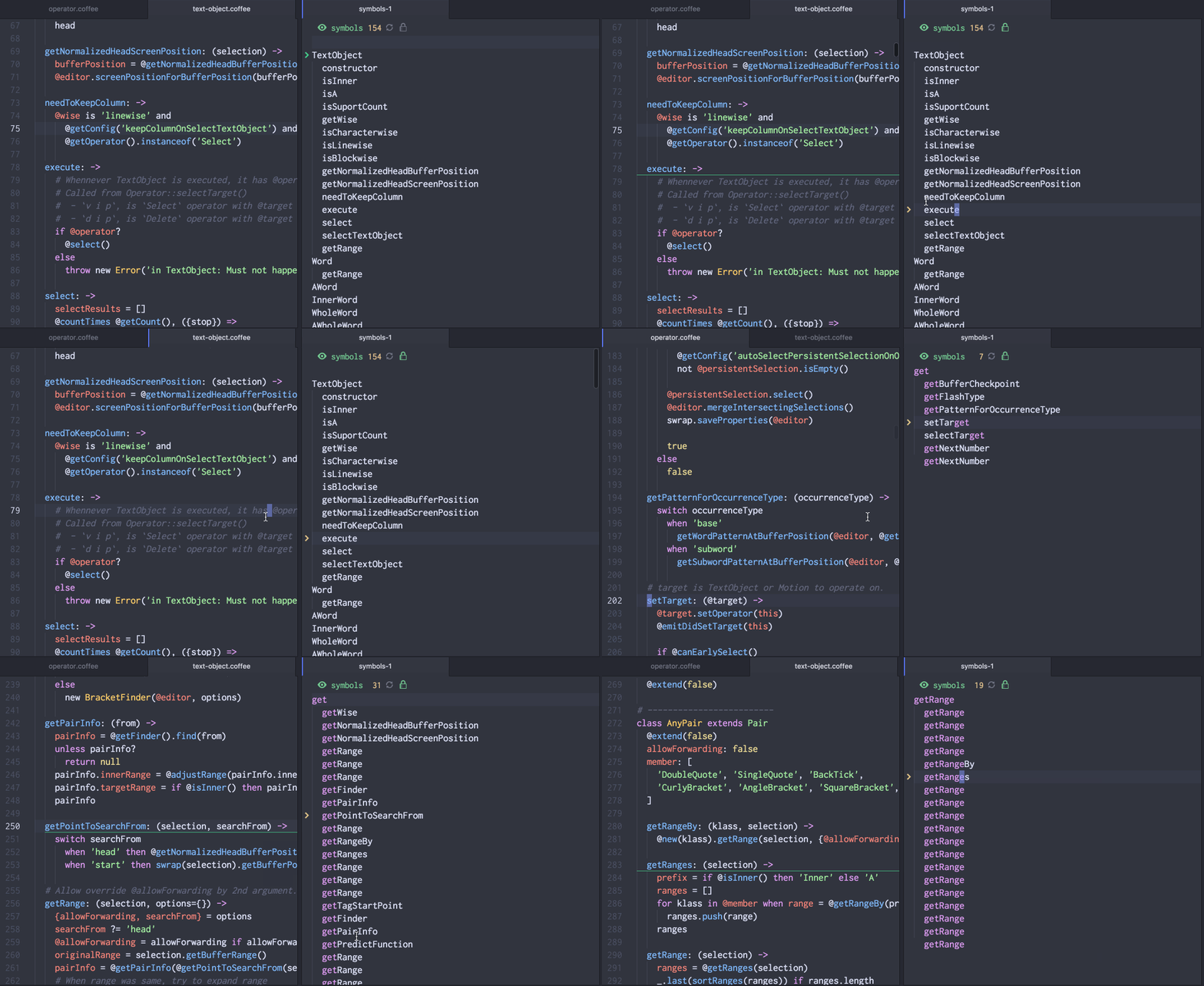
- Open
narrow:foldornarrow:symbols - Move this narrow-editor to rightmost or leftmost position in workspace, so that you can see it in comfortable place.
- Each time you focused to different file,
symbols(orfold) items are updated. - For
fold, you can change fold level bycmd-[,cmd-]innarrow-editorto control granularity level of information. - Yes you can use this as minimap which clickable and shows only important information only.
- Further, you can narrow the focus by query.
- e.g. in file which file contains multiple classes and some of it have
initializeoverriding, - In this case, narrowing by
initializequery, show onlyinitializefunctions in the items.
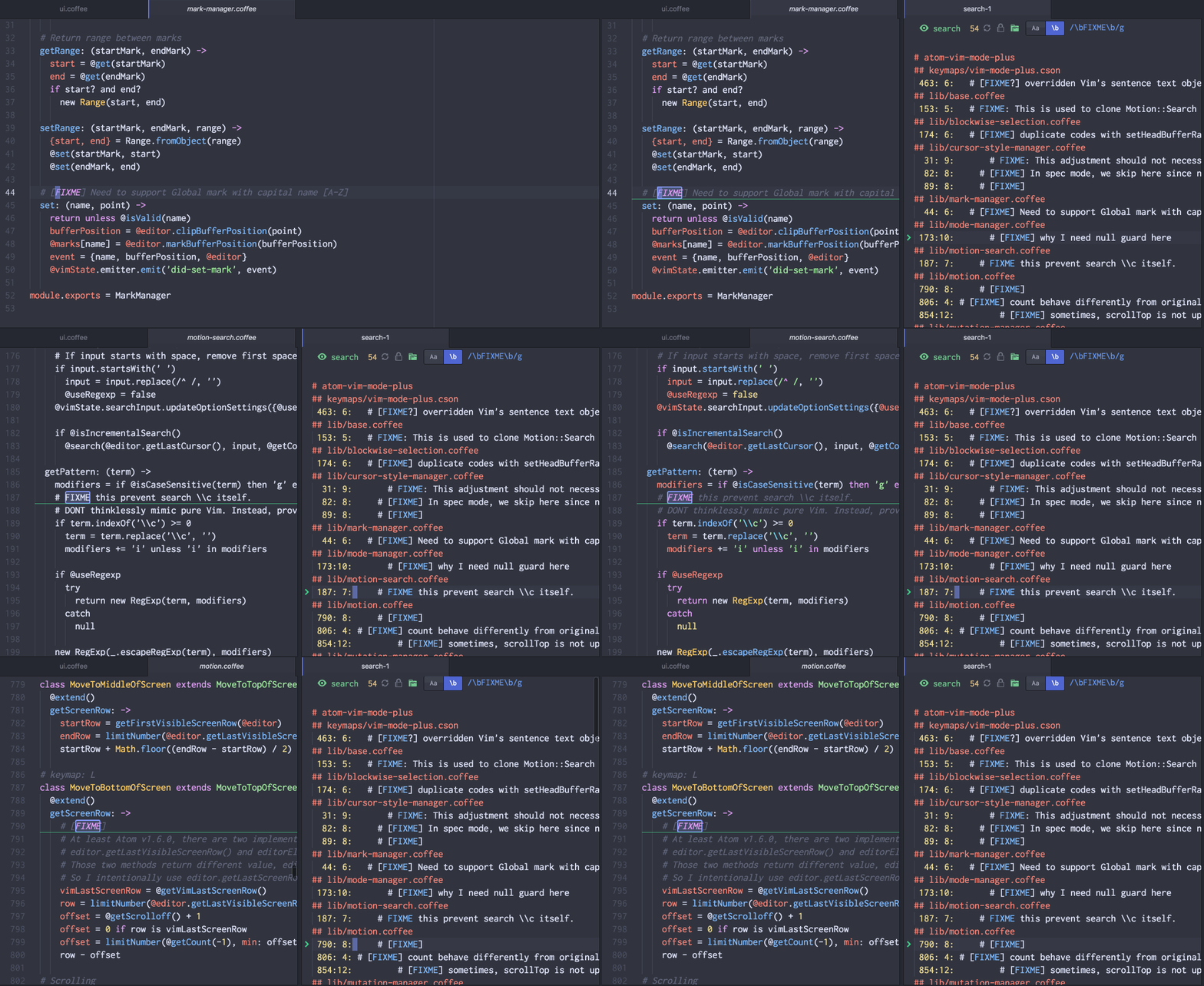
- Place cursor the
[TODO]or[FIXME]keyword, then opennarrow:search-by-current-word. - Confirm first matching item, now focus is on original-pane.
-
next-item,previous-itemguide cursor to next/previous point of interest. - After you fixed it and removed
[FIXME]or[TODO]keyword and saved. items are auto-refreshed. - So remaining items in narrow-editor is
[TODO]s you have to done. - When you done all the
[TODO]s or[FIXME]s narrow-editor would have no items in the list. DONE.
As this way, you can use this approach when you
- Rename variable names in project
- Changing argument for particular function(e.g from string argument to object).
- Removing deprecated code(after spending enough migration period and now it's time to delete!).
You can concentrate updating code and save then move to next by next-item(ctrl-cmd-n or tab for vim-mode-plus user).
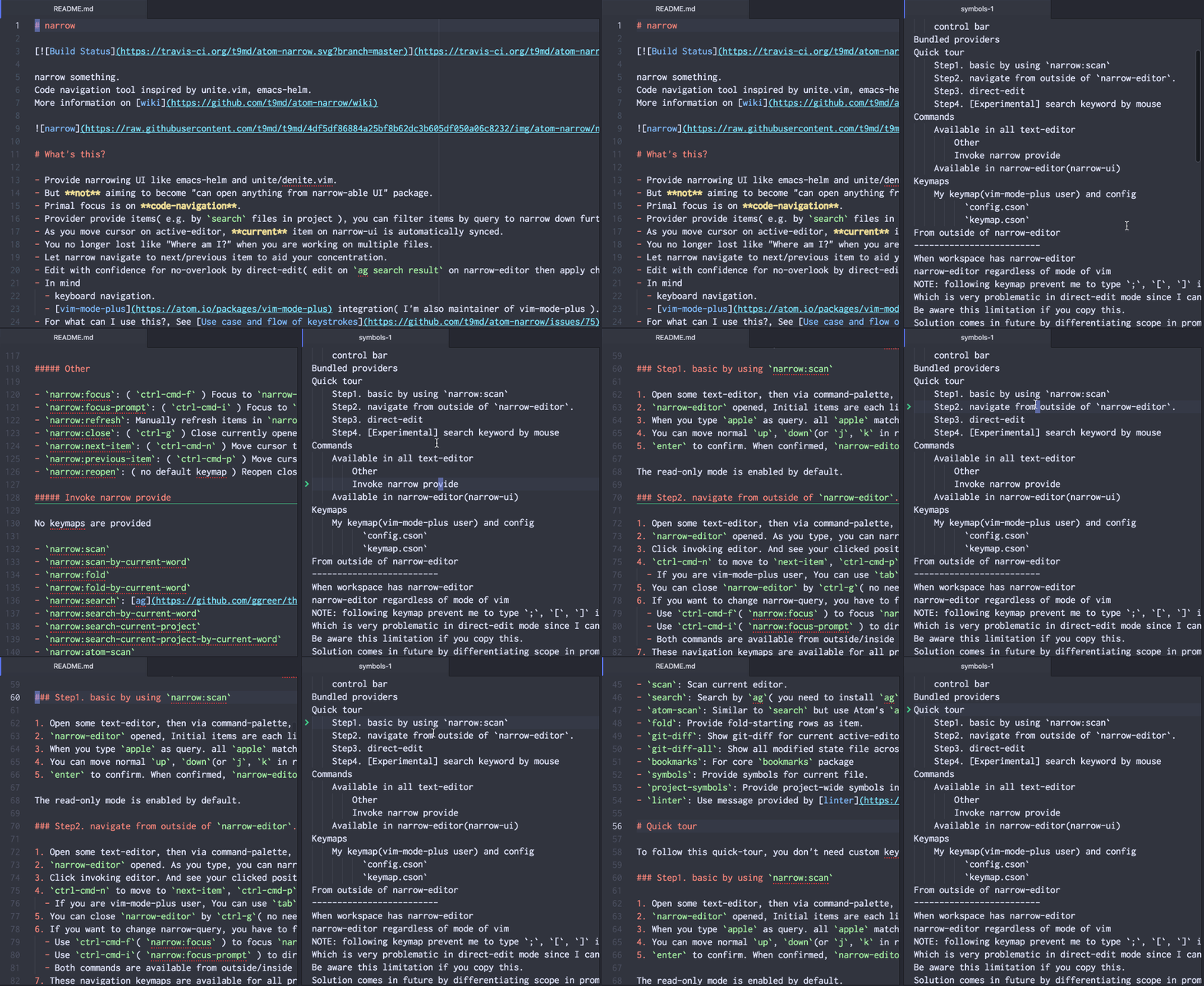
Open Of course, clickable, narrowable.
- Open
narrow:symbols,narrow:search,narrow:fold, narrow item by query if necessary. - Click item listed cause auto-preview.
In this scenario, narrow is like minimap which gives overview of code with readable text(in minimap it's gives pictorial overview but text is not readable)