A Krita docker that provides a compact list of your open images and can switch between them.
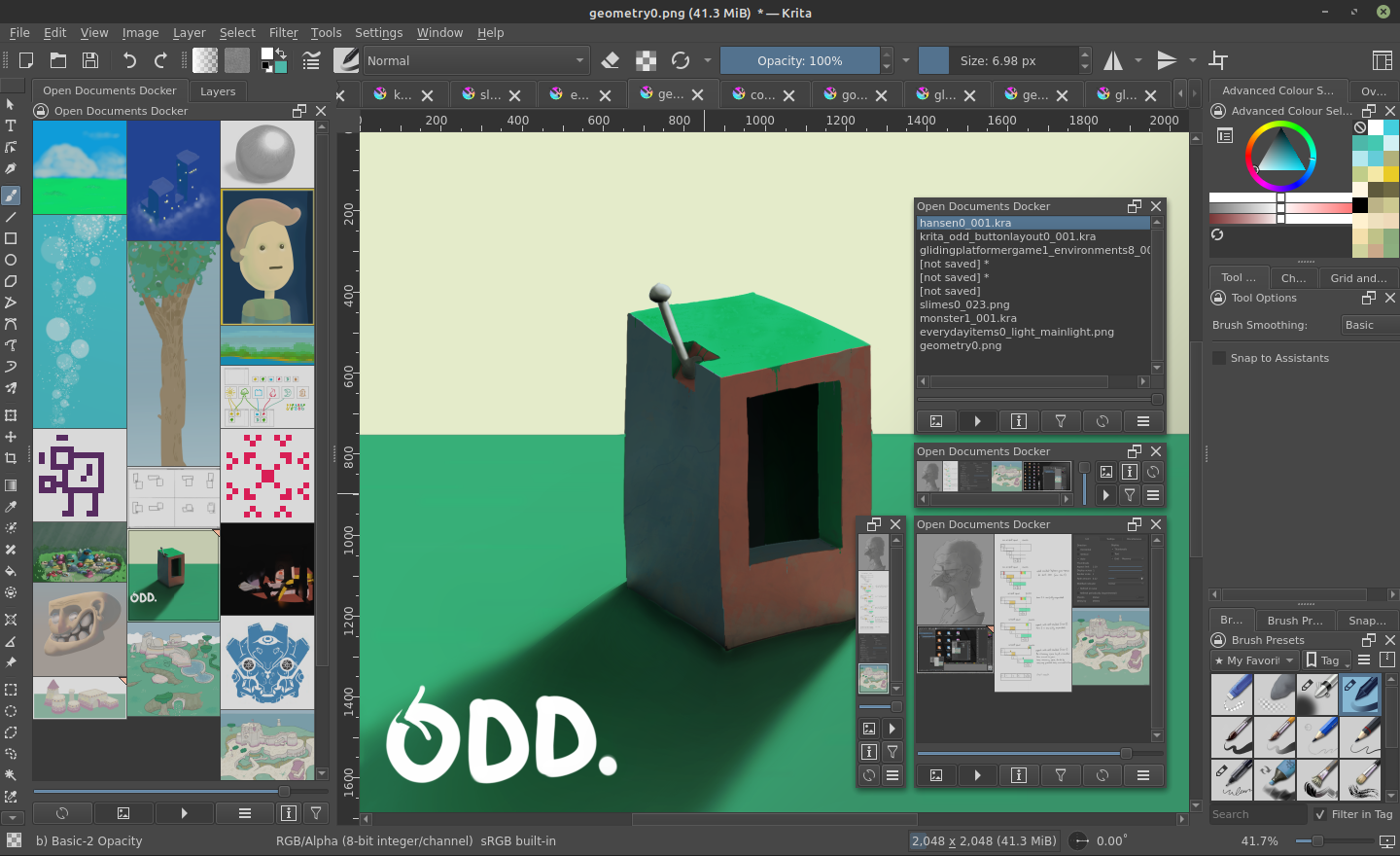
When you have many images open, the horizontal tab bar can become cramped and awkward to navigate.
The goal with ODD is to fit more files on screen at once, be quicker to navigate, and easier to scan by showing the images rather than their names.
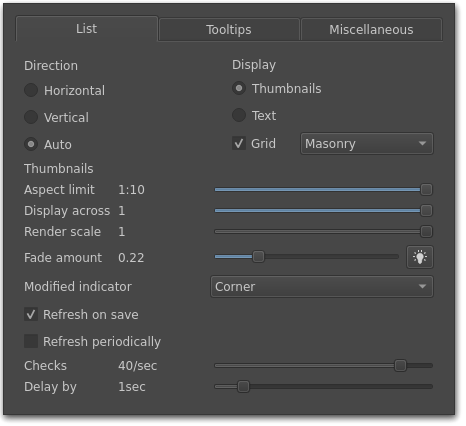
Display documents as text or thumbnails.
Layout as list or grid, vertical and horizontal.
Support for multiple views and windows.
Context menu with new options: revert, quick copy merged, view management options.
UI/UX: includes kinetic list scrolling, tabbed settings panel, and filtering docker by window.
Left-click on the thumbnail of an image to switch to it.
Right-click for a menu of common file actions: save, save as, export, etc.
The list will automatically add and remove items as files are created, opened and closed.
If you primarily use Krita to paint one image at a time, and rarely have more than two or three images open, then ODD's main function - a list of open documents - will not be of much use. You may still benefit from its other features, such as file revert or view management, but there may exist plugins for these specific things that would be more appropriate for you.
Download a zip from the releases page. Scroll to the notes for the desired version, click Assets, and click Source Code (zip).
In Krita, select Tools ‣ Scripts ‣ Import Python Plugin from File.
Select the downloaded zip file and press Ok. Choose to activate the plugin when prompted, then restart Krita.
This is the recommended way to install the plugin.
Download a zip from the releases page. Scroll to the notes for the desired version, click Assets, and click Source Code (zip).
Extract the zip, and place the "OpenDocumentsDocker" folder and "Open Documents Docker.desktop" file in Krita's plugin folder.
Where is Krita's plugin folder?
in Krita, select Settings ‣ Configure Krita, select General, then select Resources tab. There will be a path to the resource folder (eg. /home/user/.local/share/krita). Navigate to that in your file manager, then enter the folder pyKrita. This is where you should place the above folder and file.In Krita, select Tools ‣ Scripts ‣ Import Python Plugin from Web.
Paste https://github.com/tom-jk/kritaOpenDocumentDocker in the dialog, and press Ok. Choose to activate the plugin when prompted, then restart Krita.
Note that this will download the plugin in its current (unstable, in-development) state, not its latest release. The two methods above are preferred.
If you can't see the docker, first ensure it is enabled. In Krita, select Settings ‣ Configure Krita, select Python Plugin Manager, and look for Open Documents Docker in the list. If it is unchecked, check it, click Ok, and restart Krita.
Also make sure the docker is visible. Select Settings ‣ Dockers, and look for Open Documents Docker in the list. If it is unchecked, check it.
See Also: Krita plugin installation documentation
Issue reports are welcome.
Earliest: Krita 5.0.0
Latest: Most recent release at time of writing (Krita 5.1.4 stable)
v1.0.0 - 14ᵗʰ May 23
v0.0.9 - 8ᵗʰ May 23
v0.0.8 - 28ᵗʰ April 23
v0.0.7 - 13ᵗʰ April 23
v0.0.6 - 8ᵗʰ March 23
v0.0.5 - 24ᵗʰ February 23
v0.0.4 - 20ᵗʰ February 23
v0.0.3 - 5ᵗʰ Feburary 23
v0.0.2 - 24ᵗʰ January 23
v0.0.1 - 15ᵗʰ January 23